OrsPlugin
These services support the usage of plugins and contexts.
Classes
AbstractPlugin
-
class
ORSServiceClass.OrsPlugin.abstractPlugin.AbstractPlugin(varname=None, managed=True)¶ Abstract class of the plugin definition.
Class variables:
multiple: whenTrue, multiple instances of the plugin can be created. WhenFalse, only 1 instance can be created.stateDescriptors: list of instances ofORSServiceClass.OrsPlugin.statedescriptor.StateDescriptor.UIDescriptors: list of instances ofORSServiceClass.OrsPlugin.uidescriptor.UIDescriptor.
-
UIDescriptors= []
-
canBeGenericallyOpened= True
-
cleanup()
-
closable= False
-
closeFormNamed(name)
-
closeWidget(name)
-
definition= None
-
deletePlugin(aWidget=None)
-
deregisterWidget(aWidget)
-
classmethod
getActions()
-
classmethod
getAllActions()
-
classmethod
getAllInstances(pluginInContext=None)
-
classmethod
getAllRestrictableMenuItems()
-
classmethod
getAllStates()
-
classmethod
getAllSubclasses(outputCollection=None)
-
classmethod
getBibliography()
-
classmethod
getCursorTupleFromDefinition()
-
classmethod
getDescriptor()
-
classmethod
getDescriptorFromInfrastructure()
-
classmethod
getDescriptorHeader()
-
classmethod
getDescriptorInterface()
-
classmethod
getDescriptorMenu()
-
classmethod
getDescriptorUIs()
-
getFormNamed(name)
-
classmethod
getInterests()
-
classmethod
getInterfaceClasses()
-
getKeyInGlobalVariables()
-
getMainForm()
-
getMainFormName()
-
static
getPluginClassesThatManageState(state)
-
static
getPluginInstanceThatManageState(state, pluginInContext=None)
-
classmethod
getPluginWithVarName(varname)
-
classmethod
getStateAndActivationTupleFromDefinition()
-
classmethod
getStates()
-
getWeakRef()
-
classmethod
incrementPluginCounter()
-
keepAlive= False
-
multiple= True
-
openWidget(name, dock=None, tab=None, x=-1, y=-1, w=-1, l=-1, order=-1)
-
openWidgetToDefault(form_name, dock=None, tab=None)
-
pluginClass= 'None'
-
pluginCounter= 1001
-
postInit()
-
postLoadSession()¶ Placeholder for code that needs to get executed when a session is loaded. Note that this method is called at the very end of the process, when the model has been restored, plugins have been instantiated and the workspace has been restored.
-
prePublishInSession()¶ Placeholder for code that needs to get executed when a session is loaded, before the object model gets published. Note that this method is called after all plugins have been created.
-
removeFormNamed(name)
-
savable= False
-
setFormNamed(name, widget)
-
showInToolbar= False
-
source= 'Python'
-
stateDescriptors= []
-
storedInit= None
-
classmethod
tr(text)¶ Helper method to mimic how Qt behaves in the C++ side :param text: text to be translated :return: translated text
-
classmethod
updateAllPluginDefinition()
-
classmethod
updateDefinition()
OrsPlugin
-
class
ORSServiceClass.OrsPlugin.orsPlugin.OrsPlugin(varName=None, managed=True)¶ Bases:
ORSServiceClass.OrsPlugin.abstractPlugin.AbstractPlugin-
enterTemporaryAction(handleName, autoActivated=True)¶ Stack the specified state
Parameters: - handleName (str) – new state to stack
- autoActivated (bool) – if
True, the state activation of handleName will be put to an empty string, that will activate the handler even if the action is not the state activation specified in the plugin. IfFalse, the state activation will remain unchanged.
-
exitTemporaryAction(handleName, autoActivated=True)¶ Unstack the specified state
Parameters: - handleName (str) – state to unstack
- autoActivated (bool) – if
True, the state activation of handleName will be put back to what it was whenenterTemporaryActionwas called; ifFalse, the state activation is not modified.
-
generateTemporaryActionForHandle(handleName, autoActivated=True, enter='', action='', exit='')¶ Gets an action object for which the default enterAction is to stack a state and the default exitAction is to unstack that state. This is to be used for temporary actions.
Parameters: - handleName (str) – state to stack
- autoActivated (bool) – if
True, the state activation of handleName will be put to an empty string, that will activate the handler even if the action is not the state activation specified in the plugin. IfFalse, the state activation will remain unchanged. - enter (str) – action string to set instead of the enterTemporaryAction call
- action (str) – action string to set
- exit (str) – action string to set instead of the exitTemporaryAction call
Return: an Action instance
Rtype: ORSServiceClass.actionAndMenu.action.Action
-
getActionStringForSetCurrentGlobalState(state)¶ Gets a formatted string to be put as action command (in enterAction, action or exitAction) that will set the current global state of the application.
Parameters: state (str) – state to set Return: action string Rtype: str
-
getHandleActivation(state)¶ Gets the name of the (action) method of the given state activation
Parameters: state (str) – name of the state Return: name of the method of the given state activation Rtype: str
-
classmethod
getIsAnyStateDefinedByImplementation(setOfStates)
-
getResource(name)
-
getState()¶ This method is called when saving a plugin instance in a session to obtain the information required to set up the plugin at the loading of the session.
The plugin needs to be savable (see
ORSServiceClass.OrsPlugin.abstractPlugin.AbstractPlugin.savable).Return: a string of information that will be sent back to the setState method Rtype: str
-
handleChanged(oldState, newState)¶ This method is called when the state of the application is changed.
Parameters: - oldState (str) – name of the old (previous) state
- newState (str) – name of the new (current) state
-
handleTriggered(eventData)¶ This method is called on every user input (mouse move, mouse click, key press, …) when the current state of the application is one of those declared by the plugin. This method can be used to perform specific tasks even if no action is currently in progress.
Parameters: eventData (OrsEvent.eventdata.InputEventData) – the event data
-
refreshUIFromModel()¶ Calls the UI to be updated based on the implementation
-
runningInCurrentContext()¶ Gets if the plugin is in the current context
Return: Trueif the plugin is in the current context;Falseotherwise.Rtype: bool
-
setCursor(state)¶ Sets the current cursor
Parameters: state (str) – state associated to the cursor to set
-
setHandleActivation(state, activation)¶ Sets the name of the method of the given state activation
Parameters: - state (str) – name of the state. This state should be among those defined by the plugin.
- activation (str) – name of the method of the given state activation
-
setState(state)¶ This method is called to set up the plugin when loading a session.
Note
This method is called only if the string returned by
ORSServiceClass.OrsPlugin.orsPlugin.OrsPlugin.getState()at the saving of the session was not empty.Parameters: state (str) – string of information as provided by the getState during the saving of the session
-
source= 'Python'
-
StateDescriptor
-
class
ORSServiceClass.OrsPlugin.statedescriptor.StateDescriptor(state='', stateActivation='', title='', cursor='', cursorHotSpotX=0, cursorHotSpotY=0)¶ Descriptor of a state.
Elements:
state: identification namestateActivation: name of the plugin method that would return an action to be performedtitle: string to display in the status bar when this state is the current statecursor: path of an icon file for the cursor to show when the mouse pointer is over a viewcursorHotSpotX: X index on the cursor image to determine the picking locationcursorHotSpotY: Y index on the cursor image to determine the picking location
-
static
isValidFunctionName(name)
-
isValidState()
-
isValidStateActivation()
-
isValidTitle()
-
setStateCursor(cursor)
-
setStateCursorHotSpotX(cursorHotSpotX)
-
setStateCursorHotSpotY(cursorHotSpotY)
-
setStateState(state)
-
setStateStateActivation(stateActivation)
-
setStateTitle(title)
-
validate()
UIDescriptor
-
class
ORSServiceClass.OrsPlugin.uidescriptor.UIDescriptor(name='', title='', dock='Left', collapsedAtStartup=False, tab='Main', modal=False, collapsible=True, movable=True, floatable=True)¶ Descriptor of a User Interface (UI).
Elements:
name: name of the formtitle: string to display as title of the windowdock: location of the window when opening the UI (name of the docking location or floating). Accepted values:leftrighttopbottomfloating
collapsedAtStartup: boolean determining if the UI window will be collapsed when opening the UItab: name of the tab in which the UI window will be contained ifdockisleftorrightmodal: boolean determining if the window in modal (making all other sections of the application unresponsive until that window is closed). This should be used only when the window is defined as floating.collapsible: boolean determining if the docked window can be collapsedmovable: deprecatedfloatable: in the situation where the window is docked and not collapsible, this boolean determines if the window can be undocked.
-
classmethod
fixCaseDockString(dock)
-
isValidDock()
-
isValidName()
-
isValidTab()
-
isValidTitle()
-
setCollapsedAtStartup(collapsedAtStartup)
-
setUICollapsible(collapsible)
-
setUIDock(dock)
-
setUIFloatable(floatable)
-
setUIModal(modal)
-
setUIMovable(movable)
-
setUIName(name)
-
setUITab(tab)
-
setUITitle(title)
-
validate()
OrsAbstractFilterPlugin
-
class
ORSServiceClass.OrsPlugin.orsabstractfilterplugin.OrsAbstractFilterPlugin(varName=None, managed=True)¶ Abstract class of the image filter plugin definition.
The purpose of this class is to give uniform behavior for image filter plugins. This behavior is based on the condition of partial computing over a subset of the given inputs and write into specific location of the given outputs. This is done in order to be time and memory efficient.
Each image filter plugin class inheriting this abstract class can support multiple image filters. Once the image filter to use is specified, the specifications of all the inputs and outputs are given, then the method
ORSServiceClass.OrsPlugin.orsabstractfilterplugin.OrsAbstractFilterPlugin.apply()is called to perform the actual image filtering computation.Computation area
Image filters supported by this class consider the data matrix of every input and output as being aligned, using only the matrix indexes as spatial information.
The method
ORSServiceClass.OrsPlugin.orsabstractfilterplugin.OrsAbstractFilterPlugin.apply()receives the computation area with the minimal and maximal indexes in X, Y, Z and T. This is the area for which all outputs should be overwritten with the filter results; nothing else should be overwritten in the outputs.In many situations, the computation of the filter result for a given computation area might require only the data in the neighborhood of this computation area from the inputs. This is the case, for example, for convolution filters like Gaussian, Mean or Median. The methods
ORSServiceClass.OrsPlugin.orsabstractfilterplugin.OrsAbstractFilterPlugin.getLengthDependenceX(),ORSServiceClass.OrsPlugin.orsabstractfilterplugin.OrsAbstractFilterPlugin.getLengthDependenceY()andORSServiceClass.OrsPlugin.orsabstractfilterplugin.OrsAbstractFilterPlugin.getLengthDependenceZ()are called so that the filter can tell what is the size of that requested neighborhood. To avoid using unnecessary memory, inputs may therefore be given to the filter with only that required data to perform the computation over the specified computation area. If the data in the input does not extend to the end of the neighborhood specified, it means that the image border has been reached. The methodORSServiceClass.OrsPlugin.orsabstractfilterplugin.OrsAbstractFilterPlugin.setIndexFirstVoxelInputChannel()is used to tell the filter what is the area of the data subset kept in the memory of each input.Similarly, the outputs given will have at least a memory allocation required to contain the result of the filter for the computation area. The method
ORSServiceClass.OrsPlugin.orsabstractfilterplugin.OrsAbstractFilterPlugin.setIndexFirstVoxelOutputChannel()is used to tell the filter what is the area of the data subset kept in the memory of each output.When the computation is to be performed, it is the responsibility of the filter to access the data of each input accordingly with the index offsets specified by setIndexFirstVoxelInputChannel, and to write the result in each output accordingly with the index offsets specified by setIndexFirstVoxelOutputChannel.
Computation area: example
This image filter takes one input and computes one output. It requires, for each output pixel, 3 pixels on each side in X (so, 2*3 + 1 = 7 pixels wide) and 5 pixels on each side in Y (so, 2*5 + 1 = 11 pixels high). There is no dependency on Z neither on T. It means that, for each output pixel, an area of 77 pixels is required.
For simplicity, the following analysis considers only X and Y indexes.
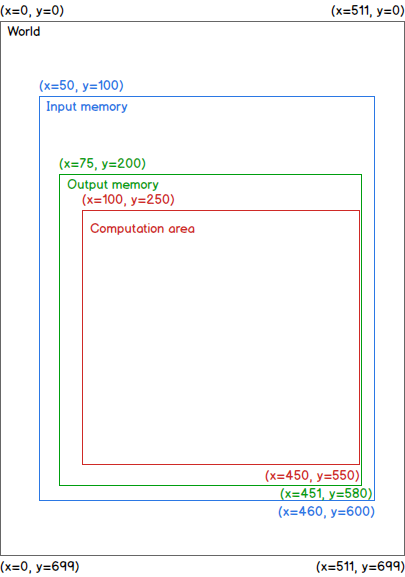
The setIndexFirstVoxelInputChannel method is called with these arguments for the input dataset:
- x: 50
- y: 100
The setIndexFirstVoxelOutputChannel method is called with these arguments for the output dataset:
- x: 75
- y: 200
The apply method is called with these arguments:
- xMin: 100
- yMin: 250
- xMax: 450
- yMax: 550
It means that the Computation area (red referential) is: [(x=100, y=250), (x=450, y=550)].
To obtain the result of the filter for the pixel located at (x=100, y=250), the pixels located in the area [(x=100-3=97, y=250-5=245), (x=100+3=103, y=250+5=255)] will be required. Similarly, to obtain the result of the filter for the pixel located at (x=450, y=550), the pixels located in the area [(x=450-3=447, y=550-5=545), (x=450+3=453, y=550+5=555)] will be required. Therefore, the input dataset will be given with at least the area [(x=97, y=245), (x=453, y=555)] in memory. Also, the output dataset will be given with at least the area [(x=100, y=250), (x=450, y=550)] in memory. These indexes were all given accordingly to the World (black) referential system of indexes.
To access the data from the input, the first voxel in memory specified for the input dataset needs to be used. The pixel (x=97, y=245) of the World referential corresponds to the pixel (x=97-50=47, y=245-100=145) of the input data matrix (Input memory (blue) referential).
Similarly, the result for the pixel (x=100, y=250) of the World referential needs to be written in the pixel (x=100-75=25, y=250-200=50) of the output data matrix (Output memory (green) referential).
-
apply(xMin: int, yMin: int, zMin: int, tMin: int, xMax: int, yMax: int, zMax: int, tMax: int)¶ Starts the computation of the current filter over the specified area
The output datasets should have their data overwritten in the area described by the indexes xMin, yMin, zMin, tMin, xMax, yMax, zMax and tMax and remain unchanged outside this area.
Parameters: - xMin (int) – minimal index in X to be computed
- yMin (int) – minimal index in Y to be computed
- zMin (int) – minimal index in Z to be computed
- tMin (int) – minimal index in T to be computed
- xMax (int) – maximal index in X to be computed
- yMax (int) – maximal index in Y to be computed
- zMax (int) – maximal index in Z to be computed
- tMax (int) – maximal index in T to be computed
-
finalize()
-
getAbbreviatedOutputName(outputIndex: int) → str¶ Gets the abbreviated output name
Parameters: outputIndex (int) – index of the output of the current filter Return: abbreviated output name of the current filter Rtype: str
-
classmethod
getAllSubclasses(outputCollection=None)
-
getClassCount() → int¶ Gets the count of classes produced by the filter, if this is defined
Return: filter output class count Rtype: int
-
classmethod
getFilterCanBeUsedForFeatureExtraction(aFilterUUID: str) → bool¶ Deprecated since version 3.1.
Parameters: aFilterUUID (str) – the filter UUID Returns: output (bool) –
-
classmethod
getFilterExist(aFilterUUID: str, aFilterVersion: str, plugin: str) → bool¶ Gets if the filter is found
Parameters: - aFilterUUID (str) – the filter UUID
- aFilterVersion (str) – the filter version
- plugin (str) – the name of a plugin using filters
Returns: output (bool) – True if the filter is found; False otherwise.
-
classmethod
getFilterIs2D(aFilterUUID: str) → bool¶ Gets if the filter can be applied in 2D
Deprecated since version 3.1.
Parameters: aFilterUUID (str) – the filter UUID Returns: output (bool) – True if the filter can be applied in 2D; False otherwise.
-
classmethod
getFilterIs3D(aFilterUUID: str) → bool¶ Gets if the filter can be applied in 3D
Deprecated since version 3.1.
Parameters: aFilterUUID (str) – the filter UUID Returns: output (bool) – True if the filter can be applied in 3D; False otherwise.
-
classmethod
getFilterUUIDsFromName(filterName) → list¶ Parameters: filterName – the name of the filter Returns: output – a list of tuple (filterClass, filterUUID)
-
getFilterUserDescription() → str¶ Gets a readable description of the filter and of his parameters
Return: readable description Rtype: str
-
classmethod
getFilters(plugin=None) → str¶ Gets the set of filters supported by this plugin.
It is a concatenation of strings, each having this syntax:
'categoryName/filterName/uuid;'Example:
strToReturn = ''  # Initialization
for aFilter in listOfFilters:
    filterCategory = aFilter._getFilterCategory()
    filterName = aFilter._getFilterName()
    uuid = aFilter._getUUID()
    strToReturn += '{category}/{filterName}/{uuid};'.format(category=filterCategory, filterName=filterName, uuid=uuid)
return strToReturn
Parameters: plugin (str) – the name of a plugin using filters Returns: output (str) – details of filters supported by this plugin
-
classmethod
getFiltersListInformation(pluginName='') → list¶ Gets the list of all filters
Parameters: pluginName – name of the plugin Returns: output – a list of tuples containing, for each filter: - filterClass - filterCategory - filterName - filterUUID - filterVersion - outputSliceCount
-
getInputChannel(inputChannelIndex: int) → str¶ Gets an input channel
Parameters: inputChannelIndex (int) – index of the input of the current filter Return: a Channel GUID Rtype: str
-
classmethod
getInputChannelCountForFilter(aFilterUUID: str) → int¶ Gets the input channel count for a filter
Parameters: aFilterUUID (str) – the filter UUID Returns: output (int) – the input channel count
-
getInputChannelLabel(inputChannelIndex: int) → str¶ Gets the label (identification) of an input
Parameters: inputChannelIndex (int) – index of the input of the current filter Return: a label Rtype: str
-
getInputChannelsCount() → int¶ Gets how many inputs (datasets) are required
Return: input count Rtype: int
-
getLengthDependenceX(inputChannelIndex: int) → int¶ Gets the extent required in X to perform computations on a subset of the dataset.
This is the largest number of pixels required in X from the pixel of computation (either side). If all the pixels are required, return -1.
Examples:
- if only the current pixel is required, this method should return 0;
- if only the immediate neighbors are required, this method should return 1.
Parameters: inputChannelIndex (int) – index of the input of the current filter Return: extent in pixels Rtype: int
-
getLengthDependenceY(inputChannelIndex: int) → int¶ Gets the extent required in Y to perform computations on a subset of the dataset.
This is the largest number of pixels required in Y from the pixel of computation (either side). If all the pixels are required, return -1.
Examples:
- if only the current pixel is required, this method should return 0;
- if only the immediate neighbors are required, this method should return 1.
Parameters: inputChannelIndex (int) – index of the input of the current filter Return: extent in pixels Rtype: int
-
getLengthDependenceZ(inputChannelIndex: int) → int¶ Gets the extent required in Z to perform computations on a subset of the dataset.
This is the largest number of pixels required in Z from the pixel of computation (either side). If all the pixels are required, return -1.
Examples:
- if only the current pixel is required, this method should return 0. This is usually the case for 2D filters, working slice by slice;
- if only the immediate neighbors are required, this method should return 1.
Parameters: inputChannelIndex (int) – index of the input of the current filter Return: extent in pixels Rtype: int
-
getMinimalXSizeOfChannelForKernel() → int¶ Gets the minimal X size of the input channels for the filter to work properly.
Return: the minimal X size of the input channels Rtype: int
-
getMinimalYSizeOfChannelForKernel() → int¶ Gets the minimal Y size of the input channels for the filter to work properly.
Return: the minimal Y size of the input channels Rtype: int
-
getMinimalZSizeOfChannelForKernel() → int¶ Gets the minimal Z size of the input channels for the filter to work properly.
Return: the minimal Z size of the input channels Rtype: int
-
getOutputChannel(outputChannelIndex: int) → str¶ Gets an output channel
Parameters: outputChannelIndex (int) – index of the output of the current filter Return: a Channel GUID Rtype: str
-
classmethod
getOutputChannelCountForFilter(aFilterUUID: str) → int¶ Gets the output channel count for a filter
Parameters: aFilterUUID (str) – the filter UUID Returns: output (int) – the output channel count
-
getOutputChannelLabel(outputChannelIndex: int) → str¶ Gets the label (identification) of an output
Parameters: outputChannelIndex (int) – index of the output of the current filter Return: a label Rtype: str
-
getOutputChannelsCount() → int¶ Gets how many outputs (datasets) are required
Return: output count Rtype: int
-
getOutputSlicesCount() → int¶ Gets the count of slices returned for a single slice analysis.
This is for filters producing multiple output values for each input pixel, contained into a single output channel.
An example of use for this is with the Segmentation Trainer, where different features have to be computed for each pixel.
Return: count of slices returned for single slice analysis Rtype: int
-
getSetupDescription() → str¶ Gets an xml formatted description of the filter and of his parameters
Return: xml formatted description Rtype: str
-
getSuggestedOutputDataType(outputChannelIndex: int)¶ Gets the suggested data type of a filter output
Parameters: outputChannelIndex (int) – index of the output of the current filter Return: suggested data type (from types of class COMWrapper.ORS_def.CxvChannel_Data_Type)Rtype: int
-
classmethod
getVersionOfFilter(aFilterUUID: str) → str¶ Gets the version number of a filter
Parameters: aFilterUUID (str) – the filter UUID Returns: output (str) – version of the filter
-
pluginClass= 'Filter'
-
setFilter(filterUUID: str, plugin: str)¶ Sets the current filter
Parameters: - filterUUID (str) – the filter UUID
- plugin (str) – the name of a plugin using filters
-
setIndexFirstVoxelInputChannel(inputChannelIndex: int, x: int, y: int, z: int, t: int)¶ Tells the filter what is the first voxel represented in memory of an input channel.
Parameters: - inputChannelIndex (int) – index of the input of the current filter
- x (int) – X index of the first voxel represented in memory
- y (int) – Y index of the first voxel represented in memory
- z (int) – Z index of the first voxel represented in memory
- t (int) – T index of the first voxel represented in memory
-
setIndexFirstVoxelOutputChannel(outputChannelIndex: int, x: int, y: int, z: int, t: int)¶ Tells the filter what is the first voxel represented in memory of an output channel.
Parameters: - outputChannelIndex (int) – index of the output of the current filter
- x (int) – X index of the first voxel represented in memory
- y (int) – Y index of the first voxel represented in memory
- z (int) – Z index of the first voxel represented in memory
- t (int) – T index of the first voxel represented in memory
-
setInputChannel(inputChannelId: str, inputChannelIndex: int)¶ Sets an input channel
Parameters: - inputChannelId (str) – input channel GUID
- inputChannelIndex (int) – index of the input of the current filter
-
setInputChannelsCount(count: int) → int
-
setOutputChannel(outputChannelId: str, outputChannelIndex: int)¶ Sets an output channel
Parameters: - outputChannelId (str) – output channel GUID
- outputChannelIndex (int) – index of the output of the current filter
-
setOutputChannelsCount(count: int) → int
-
setWorkingFolder(workingDirectory)
-
setupFromDescription(description: str, fromPython: bool)¶ Sets the filter and his parameters from a formatted xml description
Parameters: - description (str) – xml formatted description
- fromPython – True if the xml description needs no modification before being parsed; False if the call comes from C++.
States
A state is a name representing a preferred group of actions to be performed when using keyboard keys, mouse buttons or a combination of these. Generally, this is used to specify the current tool. By doing so, the same keys or mouse combinations can be reused to perform different tasks. For example, the left-button mouse click can be used to perform a Pan, a Zoom, to start a ruler or to paint a ROI with a circular brush; the task performed depends on the selected tool, which is the specified state.
Note
the word handle is sometimes used as a synonym for state.
To change the state of the application, call
OrsLibraries.workingcontext.WorkingContext.setCurrentGlobalState(), as in:
WorkingContext.setCurrentGlobalState(aPluginInstance, theNewState)
where aPluginInstance is a plugin instance (usually, self, when this call is made in a method
of the plugin implementation class), and theNewState is the string of the state to set.
To get the state of the application, call OrsLibraries.workingcontext.WorkingContext.getCurrentGlobalState().
Specification of the cursor
A cursor icon might be specified for each defined state. This icon is set for the mouse pointer when it comes over a view. Also, the picking location on that icon can be specified with the hotspot specification (in X and Y).
stateDemoCursorStateCornerTopLeft = 'stateDemoCursorStateCornerTopLeft'

# The folder cursoricons contains the cursor icon file cursorPointerCornerTopLeft.png.
# The folder cursoricons is contained in the same directory as the plugin implementation file.
stateDescriptors = [StateDescriptor(state=stateDemoCursorStateCornerTopLeft,
                                    stateActivation='',
                                    title='DemoCursorState: CornerTopLeft',
                                    cursor=':/cursoricons/cursorPointerCornerTopLeft.png',
                                    cursorHotSpotX=0,  # First pixel on the left
                                    cursorHotSpotY=0)]  # First pixel on top
Source code example:
- Download the
compressed file; - Extract these files into a plugin extension folder;
- Start the application;
- Go to the preferences to define a key for the actions named Pick for DemoCursorState at CornerTopLeft, Pick for DemoCursorState at Middle and Pick for DemoCursorState at CornerBottomRight;
- Open the top level menu Demos to see the menu item named Demo: open the plugin DemoCursorState. Click on that menu item to create an instance of the plugin and open his mainform. At the same time, a ROI is created with a painting of a cross and his borders;
- Press the button CornerTopLeft on the plugin UI to put the state of the application in stateDemoCursorStateCornerTopLeft. Note, in the status bar, that the name of the current state is changed for DemoCursorState: CornerTopLeft. Also, the cursor is changed to show that the picking is on the top left of the mouse pointer. Press and hold the key defined earlier to start the action of Pick for DemoCursorState at CornerTopLeft. The light is turned green when the ROI at the pick (hotspot) location has painting, but is turned red when the ROI has no painting at that location. While holding the key, move the mouse pointer over the ROI to see the light turn from green to red, depending on the location of the pointer. The light is turned black when the key is released or if the cursor is not in the borders of the ROI;
- Do the same using the buttons Middle and CornerBottomRight to use cursors having different picking locations.
Method handleChanged
In a plugin, the method ORSServiceClass.OrsPlugin.orsPlugin.OrsPlugin.handleChanged() is called when the state of
the application is changed.
This is generally used to update the UI of the plugin.
Source code example:
- Download the
compressed file; - Extract these files into a plugin extension folder;
- Start the application;
- Open the Preferences and look in the Configurable Actions section for the name Set state A of DemoHandleChangedState. Set an unused keyboard key for that action. Set a different keyboard key for the action with the name Set state B of DemoHandleChangedState. Apply the changes and exit the Preferences;
- Open the top level menu Demos to see the menu item named Demo: open the plugin DemoHandleChangedState. Click on that menu item to create an instance of the plugin and open his mainform. Do this again to create another instance of the plugin with his UI. Move these UIs so that both windows can be seen simultaneously;
- Press the specified action key of the action Set state A of DemoHandleChangedState to set this state. Note, in the status bar, that the name of the current state is changed for DemoHandleChangedState: A. Also, the tool button A is now pressed in both UIs;
- Do the same with the action key of the action Set state B of DemoHandleChangedState. Note that the status bar has been updated, the tool button A is reset and the tool button B is pressed;
- Switch these states using the buttons on the UI of the plugin to see the same effect.
Method handleTriggered
In a plugin, the method ORSServiceClass.OrsPlugin.orsPlugin.OrsPlugin.handleTriggered()
is called on every user input (mouse move, mouse click, key press, …)
when the current state of the application is one of those declared by the plugin.
This method can be used to perform specific tasks even if no action is currently in progress.
Information about the triggering event (an instance of OrsEvent.eventdata.InputEventData) is sent in argument.
This event data contains information such as the stage of execution of an action (enter, stay or exit).
Note
If there are multiple plugins declaring the same state name,
they all receive the call to handleTriggered.
However, this is not a common situation.
When an action is to be executed, the following procedure is done in order:
- execution of the
enterActionstring of the action, then call tohandleTriggered. This is done once; - execution of the
actionstring of the action, then call tohandleTriggered. This is done repetitively (seeORSServiceClass.decorators.infrastructure.action()); - call to
handleTriggered, then execution of theexitActionstring of the action. This is done once.
Source code example:
- Download the
compressed file; - Extract these files into a plugin extension folder;
- Start the application;
- Go to the Preferences to define a key for the actions named Increment counter in DemoHandleTriggeredState and Neutral in DemoHandleTriggeredState. Apply the changes and exit the Preferences;
- Open the top level menu Demos to see the menu item named Demo: open the plugin DemoHandleTriggeredState. Click on that menu item to create an instance of the plugin and open his mainform. At the same time, a ROI is created with a painting of a cross and his borders;
- Because the state of the application is not yet in one defined by the plugin, the method
handleTriggeredis not called. The light is set as black and will remain as such even if the mouse pointer goes over the ROI; - Press the button A on the UI of the plugin to set the state DemoHandleTriggeredState: A.
The method
handleTriggeredis now being called at each user input, including the mouse move. Move the mouse pointer over the ROI to see the light turn from green to red, depending on the location of the pointer. The light is turned black when the cursor is not in the borders of the ROI; - Press the specified action key of the action Increment counter in DemoHandleTriggeredState to start this action. This action evaluates the elapsed time between the moment it is started until it is finished. This time is shown on the UI when the action is completed. Also, a counter is incremented by 1 each time a trigger is received;
- Press the button B on the UI of the plugin to set the state DemoHandleTriggeredState: B;
- Press the specified action key of the action Neutral in DemoHandleTriggeredState to start this action.
This action does nothing per itself, but the method
handleTriggeredis still reactive to the mouse pointer location over the ROI.
Temporary actions
Actions can be used to switch to a state temporarily (as long as the associated action key is pressed)
and then return to the state that was the current one before the action was started.
Note that this action continues to be executed until the exitAction
even if that action is state-dependent and the state was changed during the enterAction.
While in the temporary state, other actions dependent on that temporary state can be executed.
Source code example:
- Download the
compressed file; - Extract these files into a plugin extension folder;
- Start the application;
- Go to the Preferences to define an unused keyboard key for the action Set temporary state A of DemoTemporaryActionState. For the action Pick in temporary state A of DemoTemporaryActionState, set the same keyboard key combined with the mouse left-button. For the action Pick in state A of DemoTemporaryActionState, set any key (this can be the mouse left-button). Apply the changes and exit the Preferences;
- Open the top level menu Demos to see the menu item named Demo: open the plugin DemoTemporaryActionState. Click on that menu item to create an instance of the plugin and open his mainform;
- Press the button A on the UI of the plugin to set the state DemoTemporaryActionState: A. Press the specified action key of the action Pick in state A of DemoTemporaryActionState to write the current cursor location in the picking information;
- Press the button Set state Track to set the application state as Track, or use any other tool button to change the state of the application. Note that the current cursor position is not updated anymore;
- Press and hold the specified action key of the action Set temporary state A of DemoTemporaryActionState to start this action. Note, in the status bar, that the name of the current state is changed for DemoTemporaryActionState: A. Also, the cursor is changed accordingly to that state definition, the button A in the UI of the plugin is also pressed, and the current cursor position is refreshing when the mouse pointer moves;
- Click in the main view with the left-button mouse to pick new locations and update the UI;
- Release the action key of the action Set temporary state A of DemoTemporaryActionState to end the temporary state switch. Note that the state is changed to the one prior to starting this temporary state switch, as shown in the status bar.
Temporary actions: switching to a state declared by another plugin
During the execution procedure of an action,
the methods handleTriggered called are those of the plugins declaring the current state of the application
at the moment the call should be made.
Source code example:
- Download the
compressed file; - Extract these files into a plugin extension folder. Note that there is 2 distinct plugins contained in the compressed file;
- Start the application;
- Go to the Preferences to define the mouse left-button for the action named Set temporary state B of DemoTemporaryActionExternalState. Apply the changes and exit the Preferences;
- Open the top level menu Demos to see the menu item named Demo: open the plugin DemoTemporaryActionExternalState A. Click on that menu item to create an instance of the plugin A and open his mainform;
- Open the top level menu Demos to see the menu item named Demo: open the plugin DemoTemporaryActionExternalState B. Click on that menu item to create an instance of the plugin B and open his mainform. Move that window so that both UIs can be seen simultaneously;
- Press the button A on the UI of the plugin A to set the state DemoTemporaryActionExternalState: A;
- Move the mouse cursor in the view.
The counter of calls to
handleTriggeredof the plugin A increases on each mouse move event; - Bring the mouse cursor on the view and press and hold the mouse left-button
to start the state switch action. Do this while making sure the mouse cursor doesn’t move.
Note, in the status bar, that the name of the current state is changed for DemoTemporaryActionExternalState: B.
Note also that the counter of calls to
handleTriggeredof the plugin A is reset to 0, while the counter of calls tohandleTriggeredof the plugin B increased and is showing the action stage EnterAction; - Move the mouse cursor to see the counter of triggers of the action Set temporary state B of DemoTemporaryActionExternalState
increase, due to the execution of the string of the
Actionstage. At the same time, the counter of calls tohandleTriggeredof the plugin B is increased and is showing the action stage Action; - Release the mouse left-button to end the temporary state switch.
The counter of calls to
handleTriggeredof the plugin B is increased one last time and is showing the action stage ExitAction.
Event consumption
The mechanism of actions (see ORSServiceClass.decorators.infrastructure.action()) rely
on the principle that a state-dependent action will be taken in priority over a state-independent (fallback) action
having the same key or mouse button.
In the situation where a key or mouse button is defined only for a state-independent action, that fallback action
is always executed when that key or mouse button is pressed.
In the other situation where a state-dependent action is also assigned to that same key or mouse button and the
application is in that state,
the default behavior is to execute the state-dependent action and do nothing with the fallback action.
However, the method handleTriggered of the plugin called during the enterAction stage of the
state-dependent action can allow the fallback action to be executed by specifying that this event is not consumed
(OrsLibraries.workingcontext.WorkingContext.setEventConsumed()):
def handleTriggered(self, eventData):
    # Starting an action with any highlighted object will give them priority
    highlighted = WorkingContext.getCurrentEntity(self, OrsHighlightedObject)
    if len(highlighted) > 0 and eventData.isEnterAction():
        WorkingContext.setEventConsumed(self, False)
        return

    # Continue with the processing of the event
It is therefore possible, for example, to move an annotation while the current state is for painting ROIs if the action is started when the cursor is placed over that annotation.
StateActivation
The field stateActivation, defined for each StateDescriptor, is to be used with mouse handlers.
